


Xiaobai
Developer · Builder
Building AI engineering systems, developer tools and long-term digital assets at XBSTACK.
About Xiaobai & XBSTACK →
How to Adapt a UIKit App for iPhone Duo: Tab Bars, Size Classes, Safe Areas, and Reserved Regions
A practical UIKit guide to iPhone Duo based on Apple’s current documentation, covering Size Classes, system navigation, custom tab bars, asymmetric Safe Areas, Reserved Regions, device poses, and Xcode 27.1 testing.
If you already have a working iPhone app, the arrival of iPhone Duo raises an obvious question: do you need to redesign the app specifically for a foldable iPhone?
Apple’s current Designing for iPhone Duo guidance and Prepare your app for iPhone Duo make the better mental model clear: this is not “build a Duo version.” The real problem is resizability: the same app needs to adapt as the available space changes across the outer display, inner display, partial folds, and Split View multitasking.
The core guidance is consistent: use Size Classes instead of orientation for major layout decisions, rely on layout margins and Safe Areas instead of fixed display assumptions, prefer standard navigation containers, and use Reserved Regions when custom UI needs to account for occlusions or hinge divisions.
Remove fixed-screen assumptions first
Many UIKit apps still use the physical screen as the main source of layout truth:
CGFloat screenWidth = UIScreen.mainScreen.bounds.size.width;
That API is not inherently wrong, but using a fixed device width to drive the main interface becomes fragile when the app can occupy many different sizes.
For view-level layout, the current container is usually more relevant:
CGFloat width = CGRectGetWidth(self.view.bounds);
With Auto Layout, prefer constraints that relate to the current safe layout region:
self.view.safeAreaLayoutGuide
Apple’s point is broader than any single line of Objective-C: avoid display-specific dependencies and let the interface resize with its actual container.
Use Size Classes, not orientation, for major layout changes
Apple’s Prepare your app for iPhone Duo explicitly recommends using Size Classes rather than interface orientation.
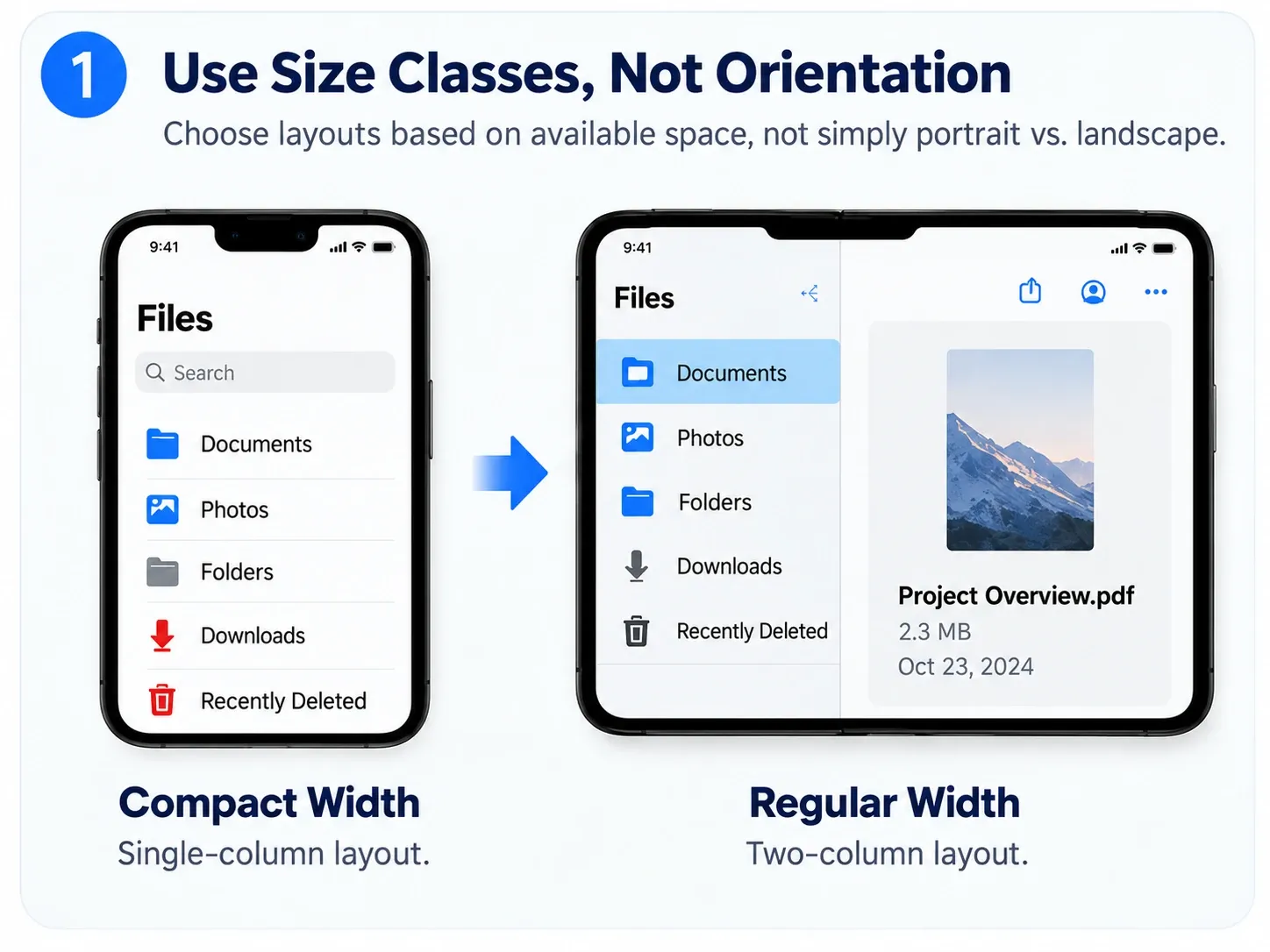
A list-detail interface can follow this model:
Compact width
→ single-column list
→ push to detail

Regular width
→ two columns
→ list + detail
This makes the layout useful beyond Duo as well. The same logic applies to Split View and other dynamically resized environments.
Let system navigation containers do more of the work
For UIKit, the most important standard containers include:
UINavigationControllerUITabBarControllerUISplitViewController
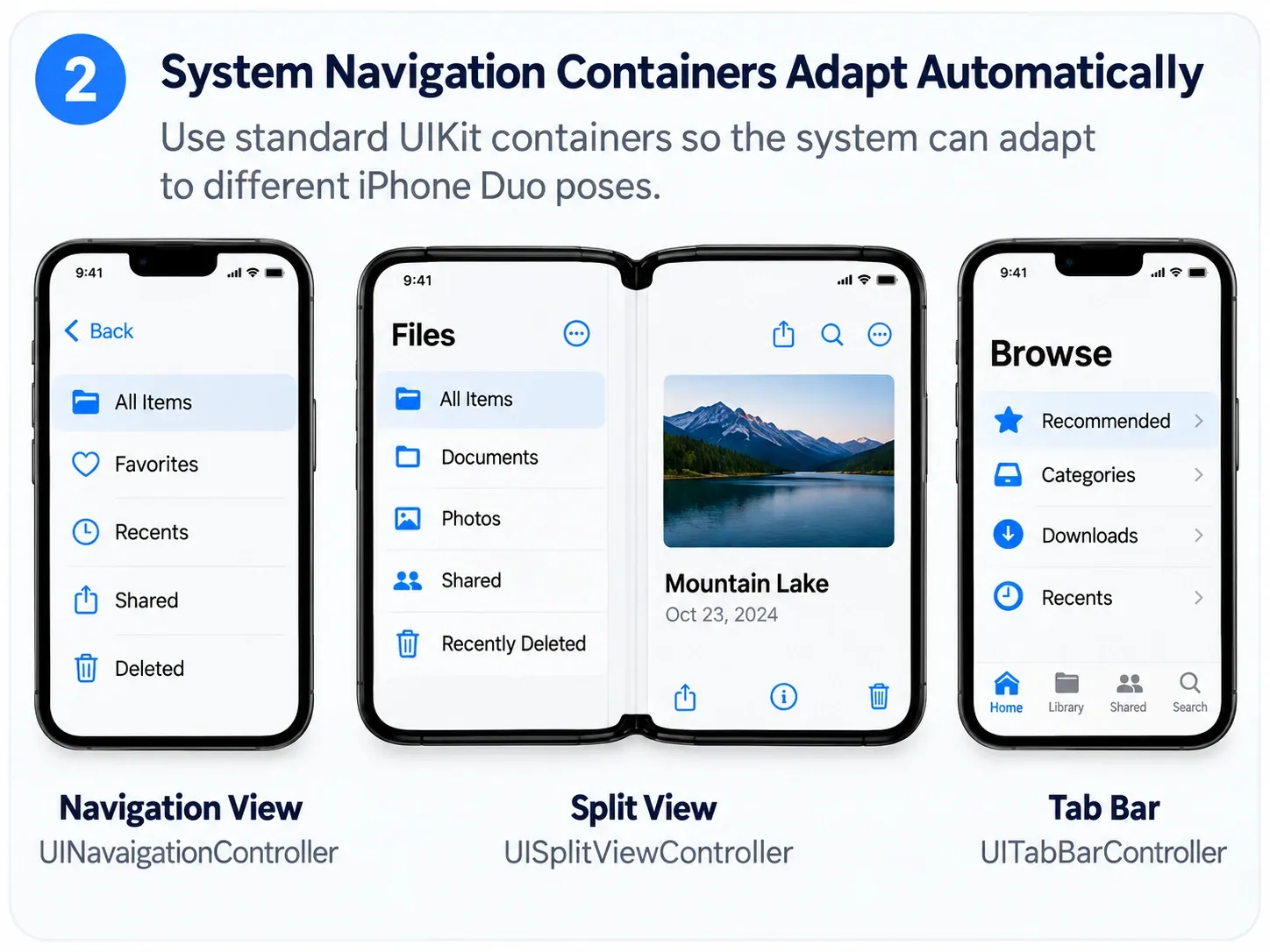
A list-detail app should not need a separate set of “Duo” navigation controllers. A UISplitViewController can collapse in compact environments and expose more hierarchy on the larger inner display.
Apple’s HIG also recommends preserving functionality, state, and information hierarchy across displays. The larger display can reveal another level of hierarchy without turning the app into an entirely different product.
Custom tab bars need special attention
A system UITabBarController participates in iPhone Duo’s platform behavior. A fully custom bar does not automatically receive all of that adaptation.
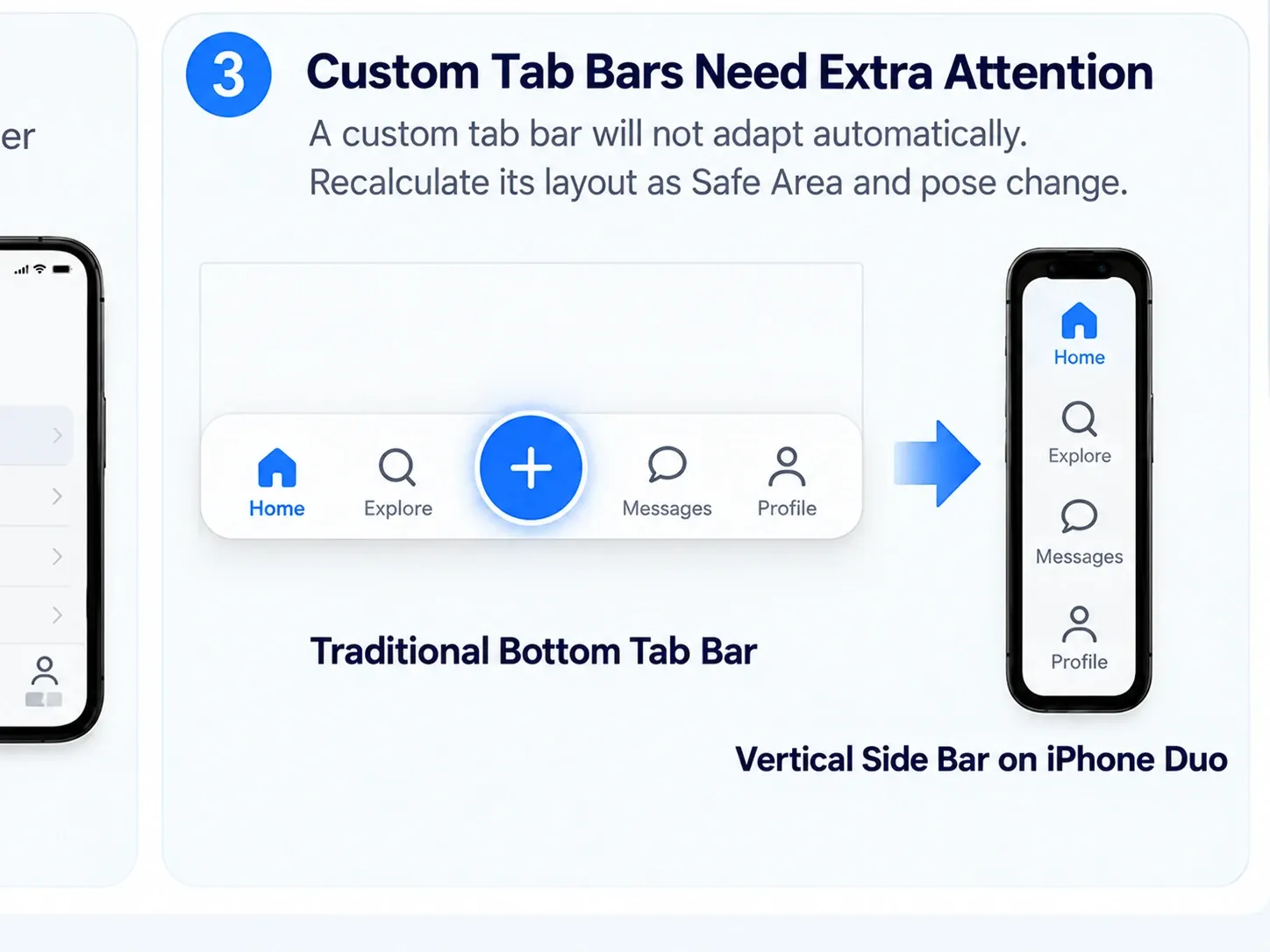
If a tab bar is built from UIView, UIVisualEffectView, UIButton, UIImageView, or custom layers, your code needs to decide:
- when the arrangement changes;
- whether horizontal controls should become vertical;
- whether a center action intersects a fold region;
- how asymmetric Safe Areas affect placement;
- which lower-priority actions can overflow.
A custom component should at least be able to recalculate its layout when the environment changes. One practical approach is:
- (void)viewSafeAreaInsetsDidChange
{
    [super viewSafeAreaInsetsDidChange];
    [self updateCustomTabBarLayout];
}

- (void)viewDidLayoutSubviews
{
    [super viewDidLayoutSubviews];
    [self updateCustomTabBarLayout];
}
These callbacks are an implementation suggestion, not an Apple requirement. The official principle is to prefer system containers where possible and make custom UI truly responsive when you own the layout.
Safe Areas may be asymmetric
A common implementation only pays attention to:
self.view.safeAreaInsets.bottom
On iPhone Duo, Apple specifically calls out asymmetric Safe Areas and layout margins across displays, poses, and system UI configurations.
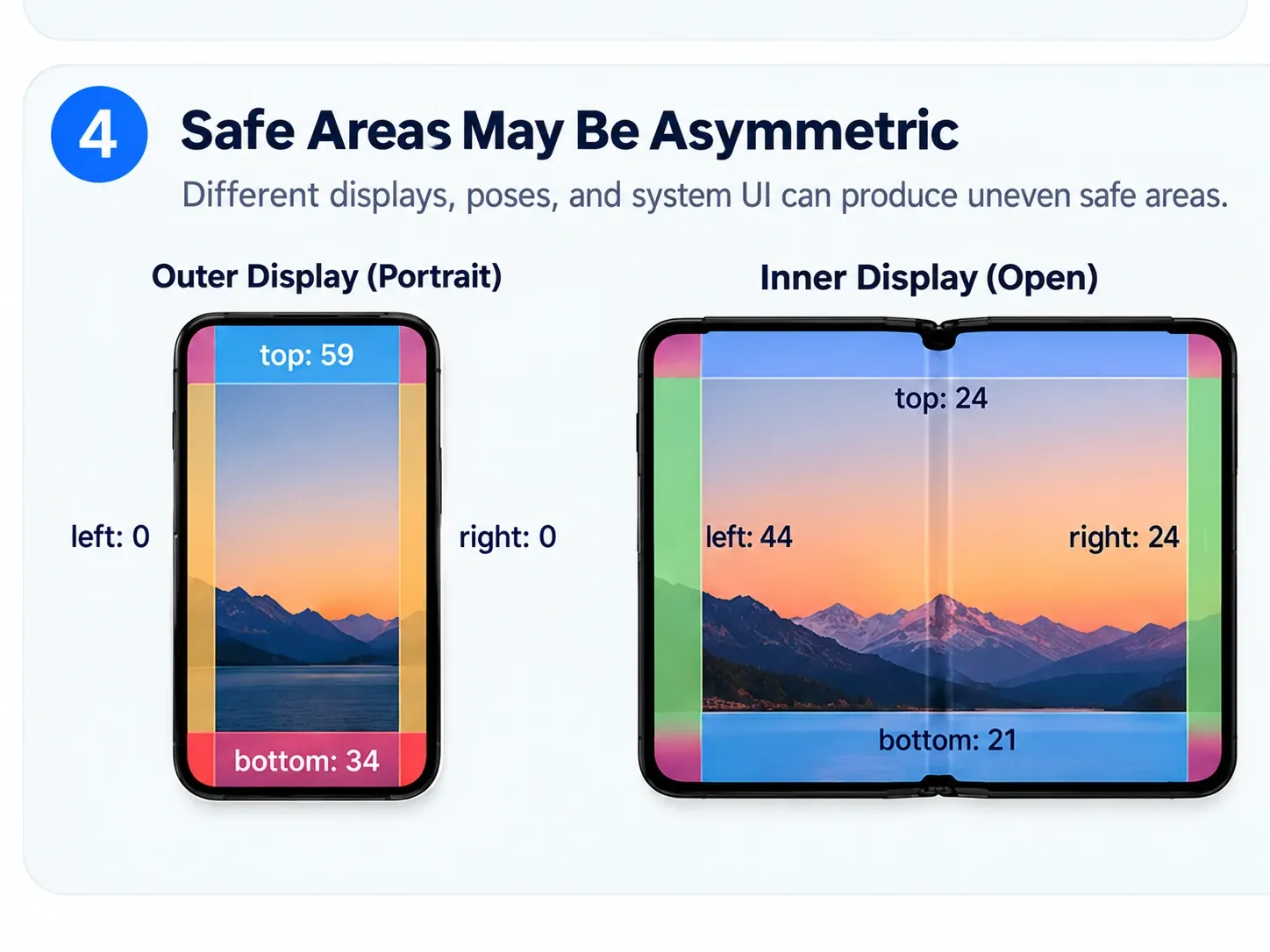
Treat all four directions as dynamic:
UIEdgeInsets insets = self.view.safeAreaInsets;
Do not assume:
left == right
A side-positioned toolbar or tab bar can meaningfully change the leading or trailing usable area.
Reserved Regions: do not guess the hinge
Safe Areas do not describe every special region. UIKit now exposes UIView.ReservedRegion.
Apple currently defines two categories:
occlusion: an area occupied by something such as a Dynamic Island, camera, or window controls;division: an area that splits content into separate regions, such as the fold of a hinge.
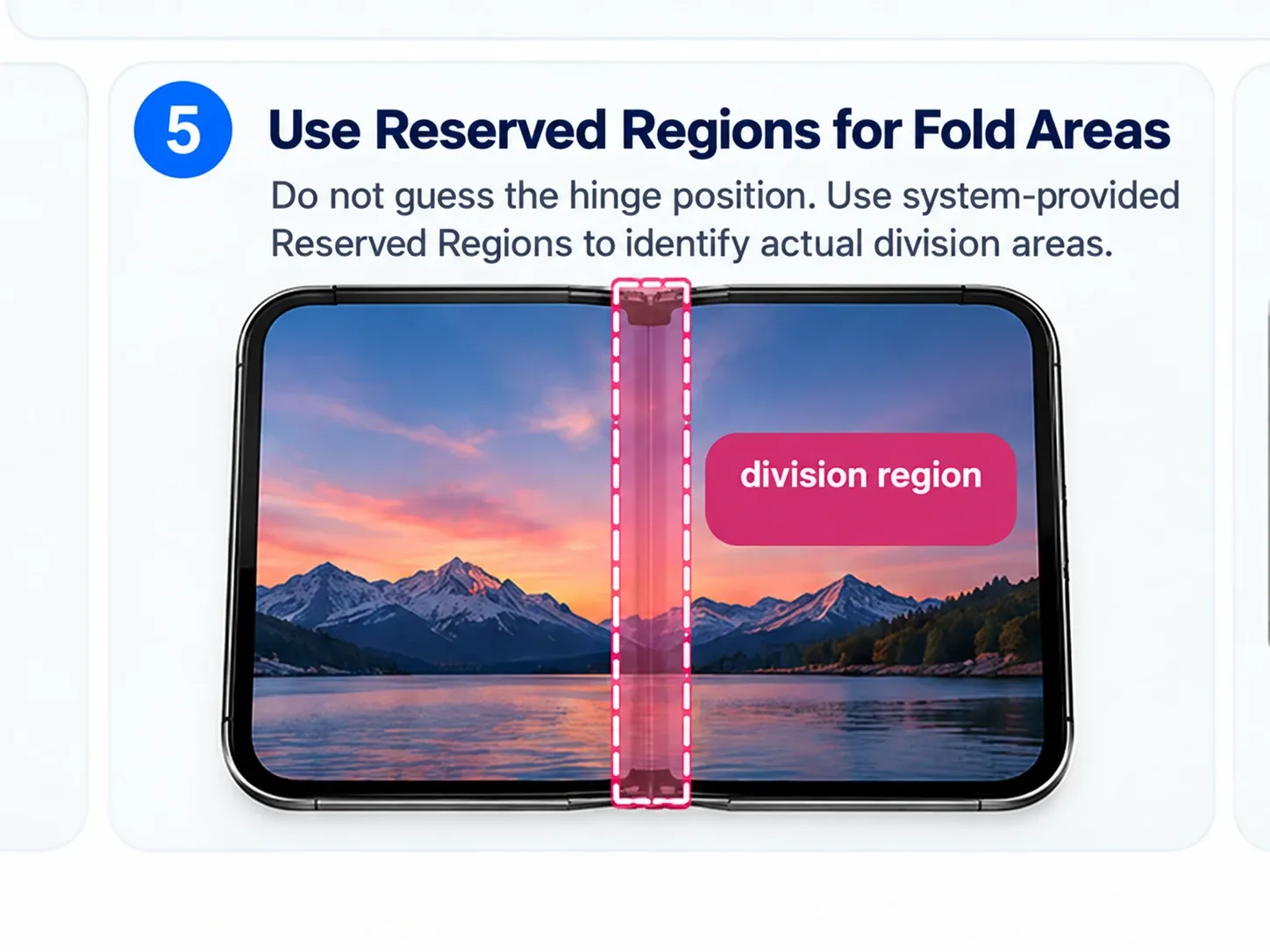
That means this is the wrong model:
display width / 2
≈ hinge center
Use the system-provided region and determine whether important interactive content intersects it.
Apple also notes that a fold-related division region changes with device state and may become inactive when the device is fully open. Layout should respond to current region state rather than hard-coded device geometry.
Not every piece of content should move away from the fold
In Design for iPhone Duo, Apple distinguishes continuous scrollable content from key interactive controls.
Articles, feeds, documents, and lists often do not need to be displaced simply because they cross the fold. Controls such as contextual actions, alerts, floating actions, or media controls are more likely to require repositioning.
A useful rule is:
continuous content can stay continuous
critical controls should remain visible, reachable, and predictable
That is a better default than splitting every interface into two hard halves.
Preserve the task across different poses
iPhone Duo can be closed, partially folded, or fully open. Apple does not recommend building a completely different information architecture for every pose.
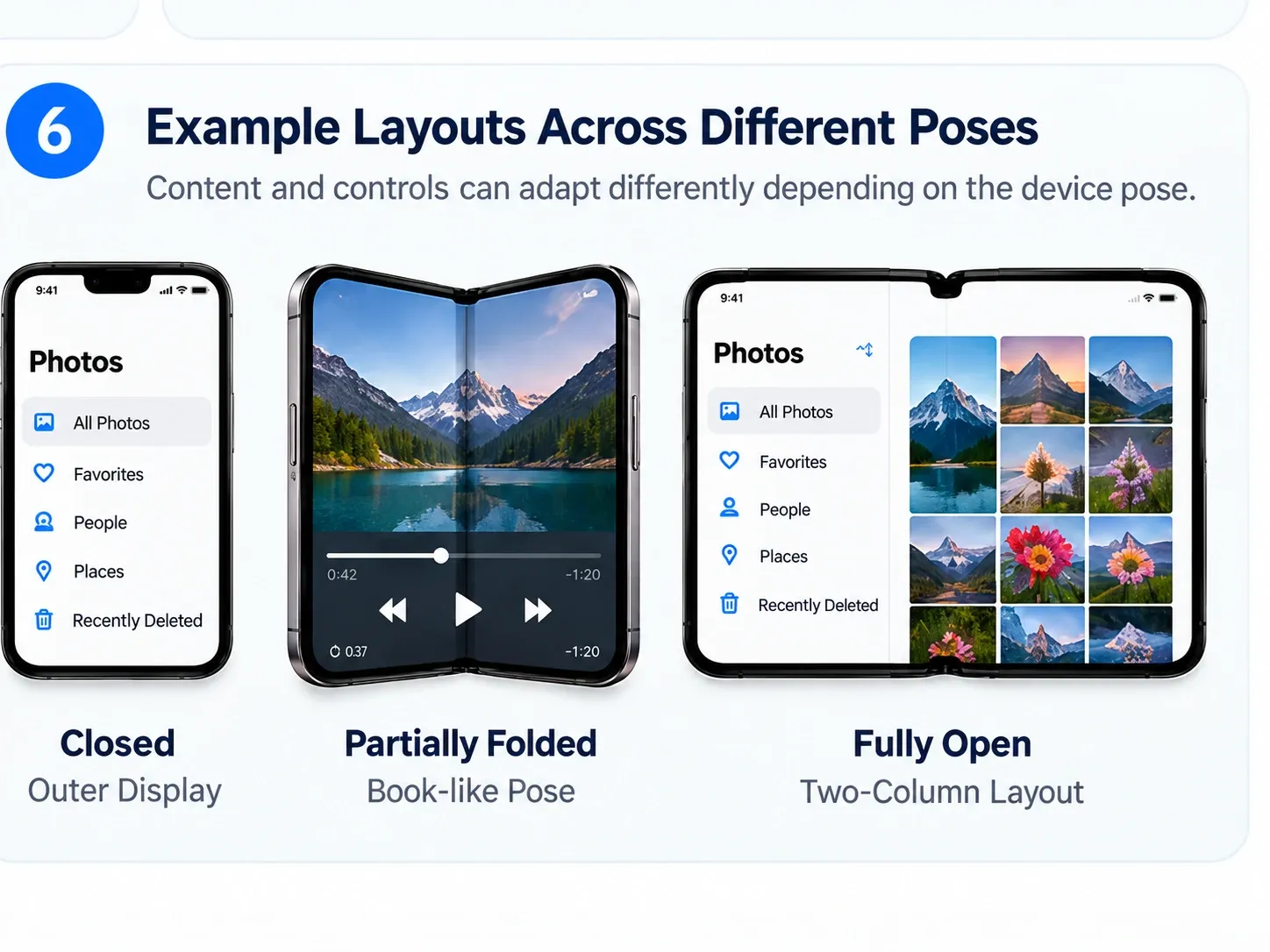
A typical progression could be:
- closed: single-column outer display;
- partially folded: reposition content and controls only where necessary;
- fully open: reveal a second column or more context.
Opening the device should not unexpectedly replace the current task with a different dashboard.
When arrangement views make sense
Apple’s Duo guidance also describes arrangement views that organize primary and secondary content based on available size, aspect ratio, and Reserved Regions.
They are most useful when the interface already has an explicit two-region relationship, for example:
- two side-by-side content areas;
- primary content with an overlay control surface;
- two regions that should move to opposite sides of a fold.
A mature UIKit app does not need to replace every UISplitViewController just because Duo exists. Adopt newer arrangement APIs only where the layout model actually benefits from them.
What to test in Xcode 27.1
Apple’s Get Ready for iPhone Duo page points developers to Xcode 27.1 beta and the iPhone Duo simulator for build and test workflows.
At minimum, cover:
Outer display
- portrait
- landscape

Inner display
- fully open
- partially folded
- different orientations

Multitasking
- Split View
- dynamic resizing

System UI
- keyboard
- sheet
- alert
- context menu
- popover

Custom UI
- custom tab bar
- floating button
- player controls
- full-screen content

Accessibility
- Dynamic Type
- RTL
- long localized text
- Dark Mode
When testing beta tooling, also distinguish an app bug from a simulator limitation before changing production code.
Is a dedicated Duo UI required for App Store submission?
Apple’s current public guidance does not say every app must ship a separate iPhone Duo interface.
The practical compatibility questions are whether the app:
- resizes correctly;
- keeps controls visible and tappable;
- respects Safe Areas;
- avoids putting critical interactions in reserved fold regions;
- works in Split View;
- preserves state across pose changes.
The risk is not “missing a Duo-specific page.” The risk is a real layout or interaction failure when the app runs at new sizes.
A practical priority order for an existing UIKit app
P0
No clipped, covered, or untappable UI

P1
Size Classes / Safe Areas / Split View behave correctly

P2
System navigation and tab bars adapt correctly

P3
Custom bars and floating UI handle Reserved Regions

P4
Use the larger inner display for additional hierarchy

P5
Add arrangement- and pose-specific enhancements where they improve the task
Compatibility comes first. Form-factor-specific enhancements come later.
The real iPhone Duo problem is resizability
The most useful word in Apple’s iPhone Duo guidance is not “foldable.” It is resizability.
If a UIKit app already:
- avoids device-model-driven layouts;
- avoids fixed main-layout dimensions;
- uses Size Classes;
- respects all Safe Area directions;
- prefers standard navigation containers;
- reads Reserved Regions for complex custom UI;
- preserves state while resizing;
then iPhone Duo does not require a new app architecture.
It simply makes modern iOS layout practices much more visible.
Related engineering checks: toolchain versions, layout stability, and media sizing
Once Duo adaptation moves into implementation, three adjacent checks are worth keeping in the same test plan. When adopting beta Xcode and a new SDK, treat the upgrade as a reversible maintenance change; see version locking and upgrade boundaries. When validating dynamic resizing, check visual stability rather than only whether controls remain visible; see layout-shift and measurable performance practices. For image-heavy interfaces, preserving intrinsic media dimensions can reduce jumps during resizing; see responsive gallery sizing practices.
These are not Apple iPhone Duo requirements. They are related engineering practices for keeping a resizable interface stable and a toolchain upgrade recoverable.
Apple sources
This guide treats only Apple-documented behavior as official guidance. The Objective-C organization and custom-component examples above are implementation recommendations.
More to Explore
Topic hub →AI Engineering Weekly
Production changes, real failures, experiments and new XBSTACK assets.

DISCUSSION
Questions, verification and corrections
Sign in to comment. Every new comment is reviewed before publication; while pending, it is visible only to you and the administrator.